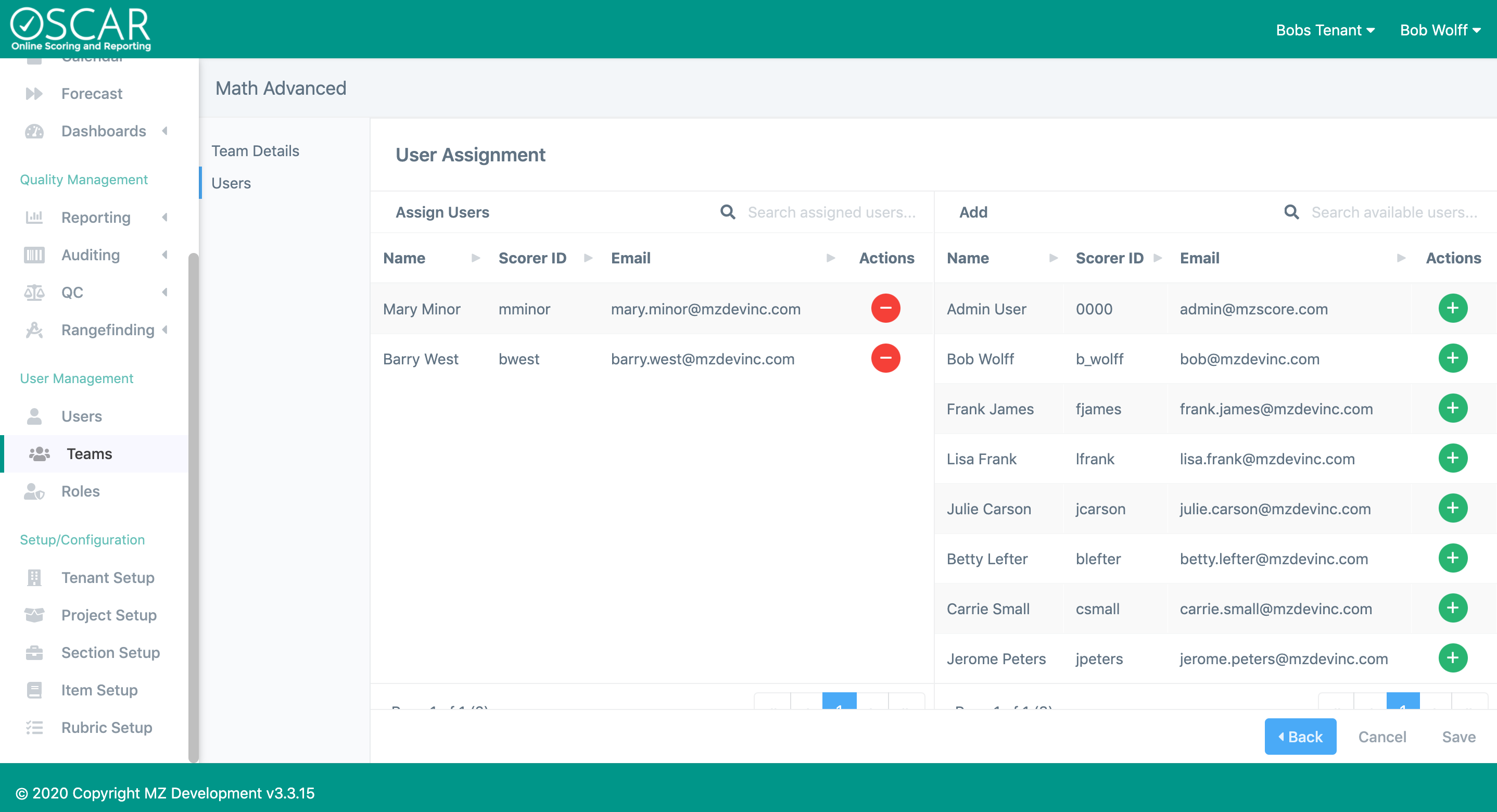
User Management> Teams> Add New Team (button)
Back to OSCAR Admin Setup Steps Overview 
Steps to create a new OSCAR Team:
- Login as a user who has Team Setup permissions enabled
- Click on the Teams menu option on the left navigation bar
- Click the
 button
 - Enter the new Team information
- Team Details - set the Team Name, Reference ID, Description and Active toggle
- Save the Team (you will not be allowed to add users until the Team is saved)
- Users - If you have already created your users, move them from the right side of the screen to the left side of the screen by choosing the
 Action. If your users have not been created, come back later to add them.
- Team Details - set the Team Name, Reference ID, Description and Active toggle
NOTE: Once a team has been created it must be added to Section(s) before any scoring assignments will be given to the team.
Back to OSCAR Admin Setup Steps Overview
NOTE: After saving the Team, use the  to return to the main Team Setup screen to add another Team